Transport
The transport bar sits at the top of the window and is available in all views.

Navigation & Playback
From left to right, the transport buttons are:
| Button | Action | Shortcut |
|---|---|---|
| Home | Return to the beginning | Home |
| Previous | Jump to previous marker | |
| Next | Jump to next marker | |
| Play | Start/stop playback | Space |
| Stop | Stop and reset | Space |
| Record | Start/stop recording | R |
| Loop | Toggle loop playback | |
| Back to Arrangement | Return from session clip playback to the arrangement position |
Loop
Enable looping with the Loop button in the transport. The loop region is defined by start and end points, displayed as editable time labels (bars:beats:ticks).
- Set loop from a time selection — Make a time selection in the arrangement and press L to set the loop region to match the selection
- Set loop from a clip — Select the clip and press Ctrl+Shift+L (Cmd+Shift+L)
Punch In/Out
Use punch in and punch out to record only within a specific time range. Enable punch mode and set the punch region start and end points in the transport bar.
Position Displays
The transport shows editable displays for:
- Playhead position — Current playback time
- Edit cursor position — Position of the edit cursor
- Time selection — Start and end of the current selection
Tempo
The tempo (BPM) is displayed in the transport bar. You can change it by:
- Clicking and dragging the tempo value up or down
- Clicking the tempo label and typing a new value
Time Signature
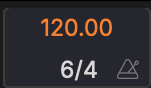
The time signature is displayed below the tempo in the transport bar. You can change it by:
- Clicking and dragging the numerator or denominator up or down
- Clicking the value and typing a new number
Metronome & Count-In
Two small icons sit to the right of the tempo and time signature. The lower one is the metronome (click track), which toggles on or off when clicked. The upper one is a circle, and it sets the count-in (pre-roll) before recording starts.
Click the circle to open the count-in menu:
| Option | Description |
|---|---|
| Off | Recording starts immediately |
| 1 Beat | One beat of click before recording |
| 2 Beats | Two beats of click before recording |
| 1 Bar | One full bar of click before recording |
| 2 Bars | Two full bars of click before recording |
Once a count-in is set the circle lights up, and it stays dim while count-in is off. Hovering it shows the current setting.
During count-in, the metronome plays but recording does not begin until the count-in period is complete.
QWERTY MIDI Keyboard
A small keyboard-icon toggle on the right side of the transport enables the computer-keyboard MIDI input. When on, typing on the QWERTY keyboard sends MIDI notes to the currently selected instrument track.
Key layout
Two rows of keys cover just over an octave. The lower row maps to the natural notes of the current base octave, the upper row extends one octave above.
| Row | White keys (naturals) | Black keys (sharps) |
|---|---|---|
| Lower (base octave) | A S D F G H J → C D E F G A B |
W E _ T Y U → C♯ D♯ F♯ G♯ A♯ |
| Upper (base +1) | K L → C D |
O P → C♯ D♯ |
Octave shift:
Z— move the base octave down oneX— move the base octave up one
The base octave defaults to 3, so A plays C3. Range is clamped to 0–8.
Modifier combinations (⌘, ⌃, ⌥) and the spacebar always pass through to regular shortcuts, so transport control and edit shortcuts keep working while the keyboard is on.
The toggle itself is hidden automatically on narrow windows where the transport has to prioritise other controls.
Grid & Snap
The grid controls how clips and edits snap to musical divisions. The grid cluster in the transport bar has three parts:
- Snap toggle — Enable or disable snapping to the grid.
- AUTO — When on, the grid resolution follows the current horizontal zoom: it picks a finer division as you zoom in and switches to bar multiples when you zoom far out (the readout then reads 1 bar, 2 bars, and so on). The manual numerator/denominator values are dimmed while AUTO is active.
-
Grid division — Click the division button (tooltip Grid division) to pick a fixed resolution from the menu:
Section Divisions Straight 1/1, 1/2, 1/4, 1/8, 1/16, 1/32 Triplet 1/4T, 1/8T, 1/16T, 1/32T Dotted 1/2., 1/4., 1/8., 1/16., 1/32. Custom... at the bottom opens a numerator/denominator editor that shows the nearest named division as you type.
The same picker is used by the bottom-panel editors (Piano Roll, Drum Grid Editor, and the automation-clip editor), each with its own AUTO button.