Chord Track
The Chord Track lays out a chord progression that guides the harmony of your song. You sketch the progression as a row of named chord blocks — A min7, D maj, G maj7 / B — and each block carries the actual MIDI voicing underneath, which you can audition and refine.
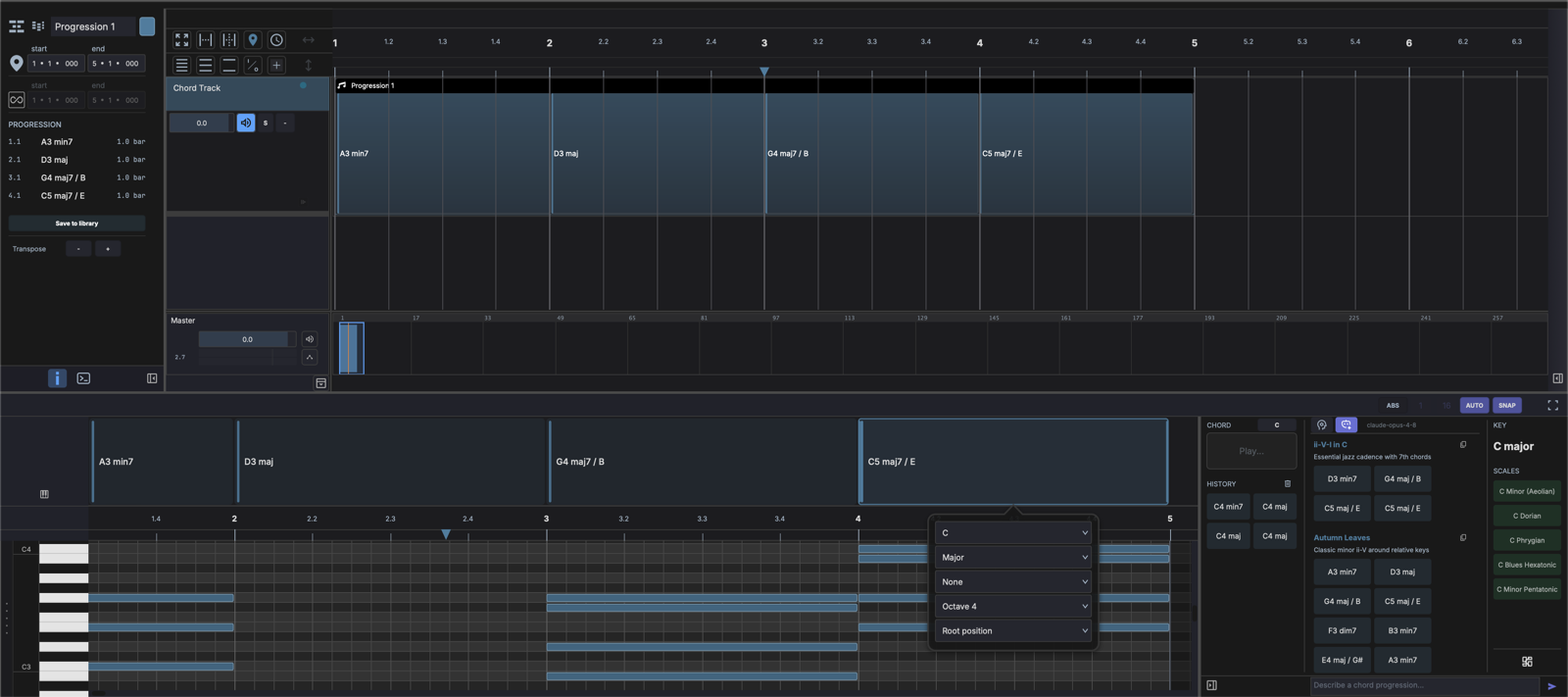
A project has a single chord track. Once you have added it, the menu item that creates it is disabled.
Creating a Chord Track
Choose Track → Add Chord Track. The track appears with a simplified header:
- A volume control and a solo button.
- A chord audition toggle (the speaker icon) that controls whether the progression sounds during playback.
It has no mute button or level meter — the chord track is a guide, not an audio output.
Editing Chords
The chord track's clip opens in a dedicated chord editor at the bottom of the window. The top chord lane holds the chord blocks; a piano-roll strip below shows the voiced notes for the selected chord.
- Add — click an empty spot on the chord lane to drop a chord at the nearest bar.
- Edit — double-click a block to open the chord popup, with dropdowns for:
- Root — C through B
- Quality — Major, Minor, Dim, Aug, Sus2, Sus4, 5 (power), Dom
- Extension — None, add2/add4, 6, 7, 9, … (the choices depend on the quality)
- Octave
- Inversion — Root position, 1st, 2nd, 3rd
- Move / resize — drag a block along the lane to move it, or drag its edges to change its length. Hold Alt while dragging to copy a chord.
- Audition — click a block to hear it through the track's instrument.
- Delete — select a block and press Del.
You can also drag a chord straight from the Chord Engine suggestion grid onto the chord lane.
The Progression List
Select the chord clip and open the Inspector to see the Progression list — every chord with its bar.beat position, name, and length:
| Pos | Chord | Length |
|---|---|---|
| 1.1 | A3 min7 | 1.0 bar |
| 2.1 | D3 maj | 1.0 bar |
| 3.1 | G4 maj7 / B | 1.0 bar |
| 4.1 | C5 maj7 / E | 1.0 bar |
- Transpose — the - / + buttons shift the whole progression up or down.
- Save to library — stores the progression in the chord progression library (see below).
Chord Progression Library
Saved progressions live in the media library so you can reuse them across projects. Open the Media Explorer, switch it to Library (the database icon), and click the chord progression filter to list only progressions. Browse or filter them, then drag one onto a chord track to drop the whole progression in.