Plugin & Media Browser
The left panel contains two browser tools for finding and adding content to your project.
Plugin Browser
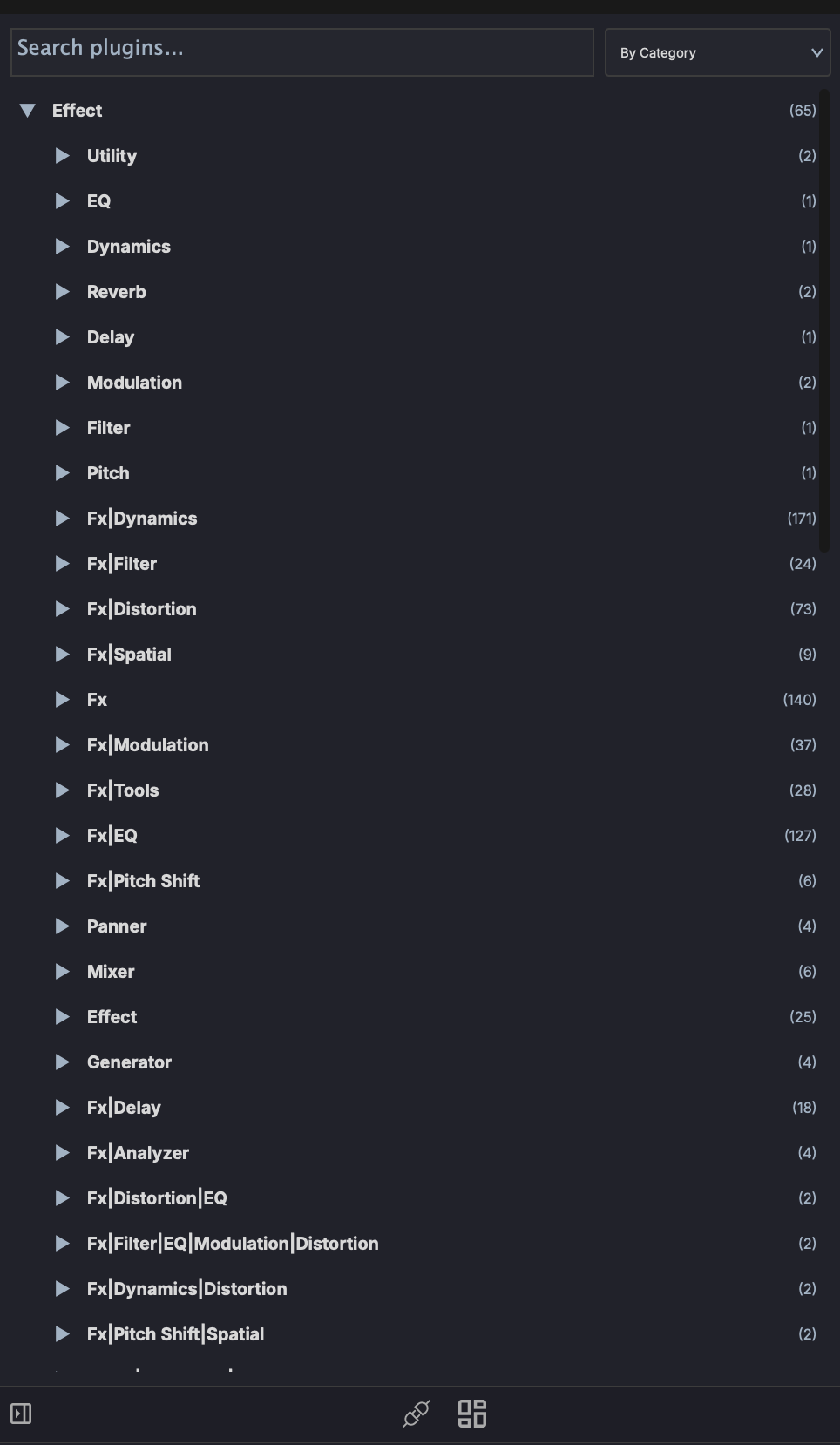
The Plugin Browser shows all available audio plugins organized in a tree view.
Navigation
- Tree view — Plugins organized by manufacturer and category
- Search — Type to filter by plugin name
- Favorites — Star plugins for quick access
- Folders - Switch to a Folders view mode and organize plugins into your own folders. Folders stay in creation order and remain drop targets even when empty; an Unfiled bucket holds everything you have not filed.
Adding Plugins
- Drag and drop — Drag a plugin from the browser onto a track header or into the FX chain to add it
- Double-click — Add the plugin to the currently selected track's FX chain
Supported Formats
- VST3
- Audio Units (AU) — macOS only
- VST (legacy)
On macOS, when a plugin is installed as both VST3 and AU, the browser shows only your preferred format. See Preferred Plugin Format.
Rescanning
If a newly installed plugin doesn't appear, use Settings > Plugin Scan to re-scan your plugin directories.
Media Explorer
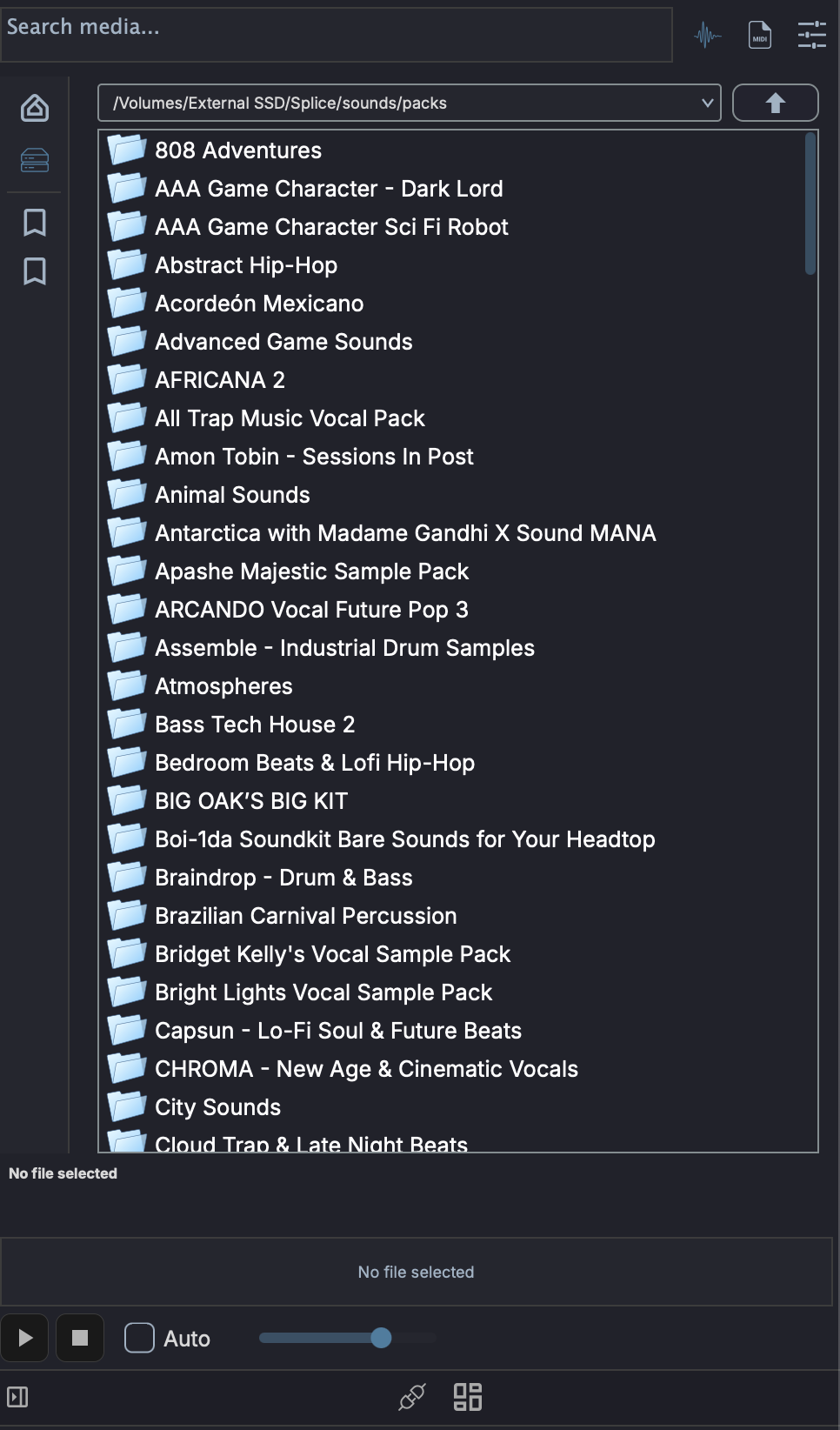
The Media Explorer lets you browse files on your system and preview audio before importing.
Searchable library
The same panel has a Library mode that indexes folders into a searchable database, so you can find sounds by family, key, tempo, tags, or a plain-language description. See Media Library.
Navigation
- File browser — Navigate your file system with a tree view
- Path bar — Click to jump to a specific directory
Preview
- Click an audio file to preview it through your monitor output
- Preview plays the file as it is on disk, at its own tempo and pitch. It is not stretched to match the project tempo, so a 90 BPM loop auditions at 90 BPM whatever the transport is set to. Drag the file onto a track if you want it to follow the project tempo
- With Auto on, ++arrowup++ / ++arrowdown++ step through results and audition each one as it is selected; ++arrowleft++ stops the preview and ++arrowright++ replays it from the start
The controls under the waveform drive the preview:
- Play / Stop - start the selected file from the beginning, or stop it. Play is greyed out until a file is selected
- Volume - preview level only. It is independent of the project's mixer and is not recorded into anything
- Auto - audition each file as soon as it is selected, instead of waiting for Play
Preview runs outside the project's mixer and goes straight to the output pair you nominate, so it keeps working while the transport is stopped. Choose that pair with the Preview toggle in Audio Settings.
Filters
- Filter by file type (audio, MIDI, project)
- Sort by name, date, or size
Importing
- Drag and drop — Drag files from the explorer onto a track or clip slot to import
- Supported audio formats: WAV, AIFF/AIF, FLAC, OGG, MP3 where a platform decoder is available
- Supported MIDI formats: .mid files
Multi-Select
- Shift-click to extend the selection to a contiguous range
- Cmd-click (Ctrl-click on Windows/Linux) to toggle individual files in and out of the selection
- Drag any file in the selection to drag the whole selection out
Drop targets vary by destination:
- Arrangement View — empty area creates one track per sample; existing track appends clips sequentially
- Session View — empty area creates one track per sample stacked into scene rows; existing track stacks clips down consecutive scene slots
- Drum Grid — samples fill consecutive pads from the drop target