Tracks
Tracks are the fundamental building blocks in MAGDA. They appear in all three views — as columns in Session View, rows in Arrangement View, and channel strips in Mixer View.
Hybrid Track System
MAGDA uses a hybrid track system: there is no strict distinction between audio and MIDI tracks. Any track can contain any combination of audio clips, MIDI clips, and other clip types. The track's behavior adapts based on the clips and devices it contains.
Track Types
| Type | Description |
|---|---|
| Audio | Standard track for audio recording and playback |
| Instrument | Track with a virtual instrument plugin loaded |
| MIDI | Track that sends MIDI to external devices |
| Group | Bus track that groups multiple child tracks |
| Aux | Auxiliary/send-return track for shared effects |
| Chord | Guide track holding a chord progression — one per project (see Chord Track) |
| Master | Final stereo output — one per project |
Track Controls
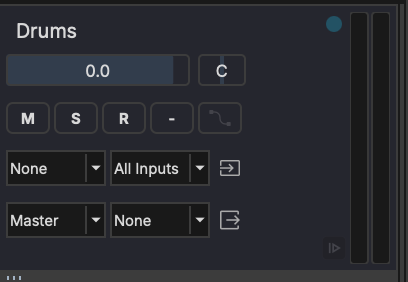
Every track provides the following controls. They render identically in the track header and the track Inspector, and reflow responsively to the width available rather than to fixed height presets, so no control is ever hidden.
- Volume fader — Adjust the track's output level
- Pan knob — Position in the stereo field
- Mute (M) — Silence the track. Shortcut: select the track and press M
- Solo (S) — Solo the track. Shortcut: select the track and press Shift+S
- Record arm (R) — Arm the track for recording
- Input monitor — Monitor the live input signal through the track
- Automation — Toggle automation read/write for the track
- Sends - Level to each aux / return the track feeds
- Routing - Input and output routing for the track (see Track-to-Track Routing)
- Meter - Peak level meter for the track
The Automation button lights purple when the track holds automation.
Multi-Output Plugins
When an instrument plugin has more than two output channels (e.g. Kontakt, Battery, Drum Machine Designer), MAGDA can create separate output tracks for each stereo pair.
- Open the multi-out menu on the device (the
 button) and activate the output pairs you need
 - Each activated pair creates an independent track placed directly after the instrument track
- Output tracks behave like any other track — you can rename, reorder, route to groups, and apply FX
- To organize them, select the output tracks and move them into a Group using the right-click menu
Note
Multi-out tracks receive audio from the parent instrument's rack — their input routing is fixed. Output routing (to master, groups, or aux sends) works normally.
Track-to-Track Routing
A track can take another track's output as its own input. Every other track appears in the audio-input and MIDI-input selectors, listed after a separator alongside the hardware inputs, in the Inspector, the track headers, the Mixer, and Session View.
From the source side, MIDI To routes a track's MIDI output to a single destination track.
Self-routing and feedback loops are detected and blocked. Routings are saved with the project, and input monitoring works normally for an internally-routed track.
Track View Manager
Each of the three views — Session, Arrangement, and Mixer — maintains its own independent track visibility and layout. This means you can show a different set of tracks in each view.
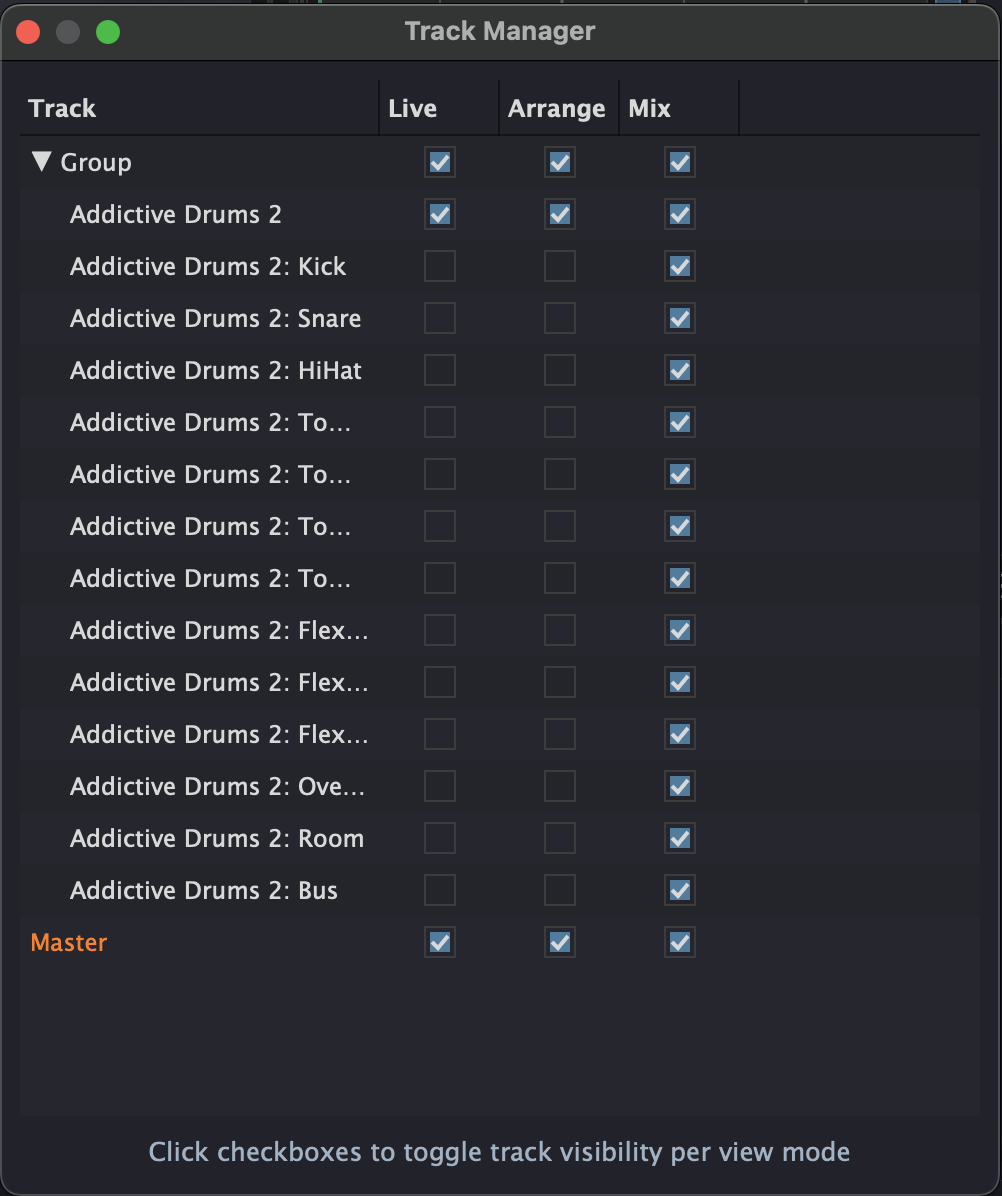
Open the Track Manager from the View menu to configure track visibility per view. Each column (Live, Arrange, Mix) has independent checkboxes — toggle them to control which tracks appear in each view.
Per-view track settings include:
- Visible — Whether the track appears in this view
- Locked — Prevent editing the track in this view
- Collapsed — For group tracks: collapse or expand children
- Height — Track row height (Arrangement View)
Example: Multi-Output Workflow
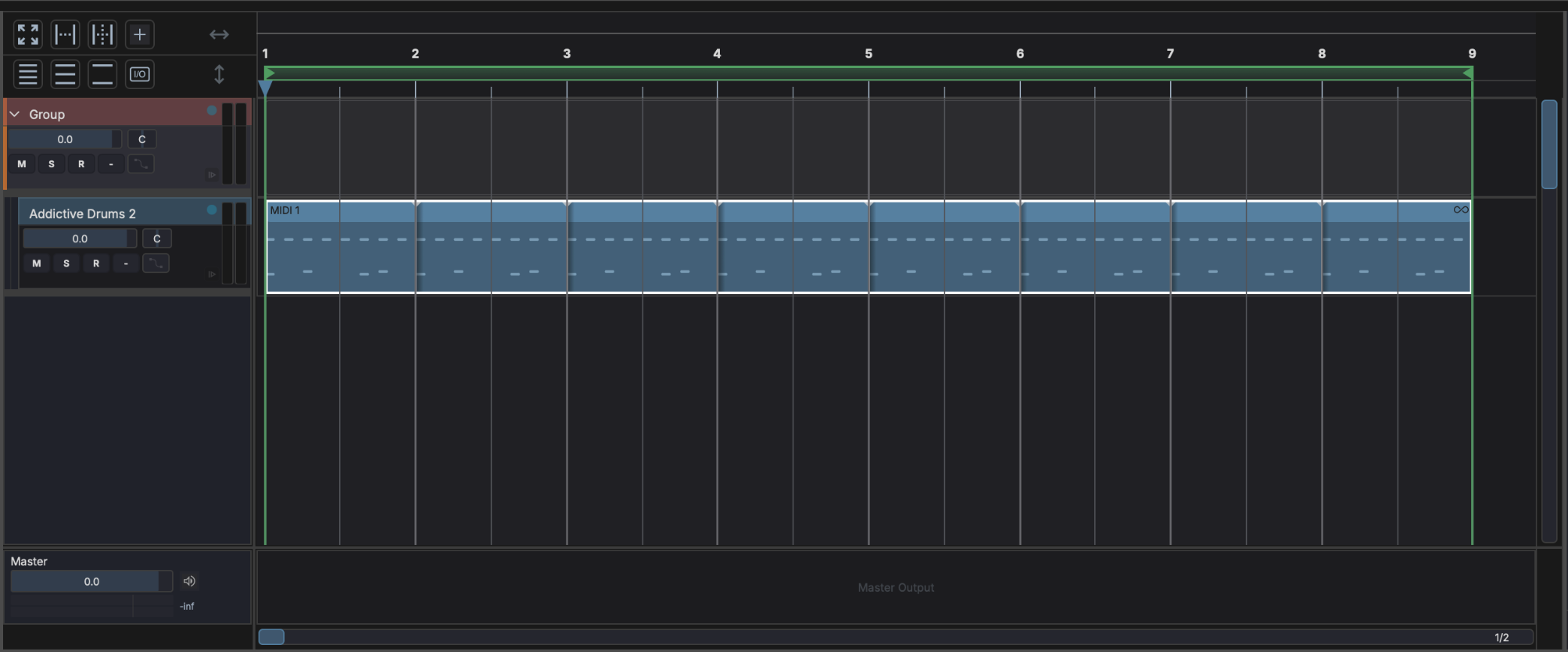
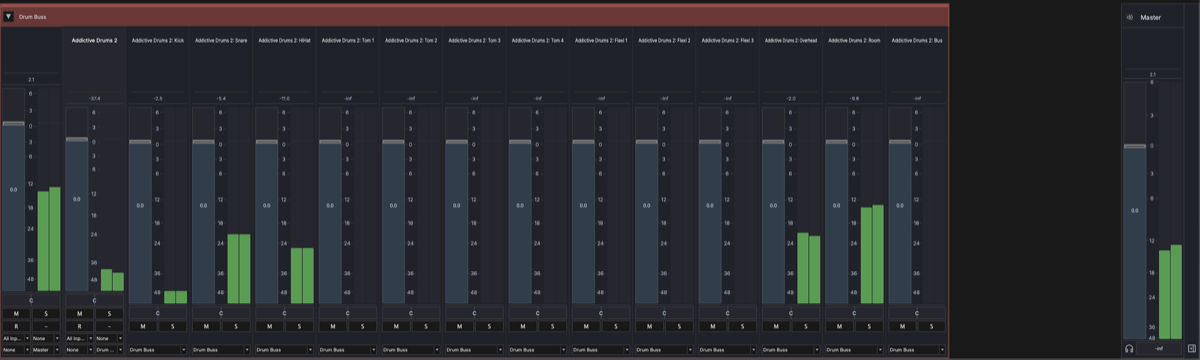
A common use case is keeping the Arrangement View clean while having full control in the Mixer. With a multi-output instrument like Addictive Drums, you can hide the individual output tracks from the Arrangement and show only the MIDI track you compose on:
Arrangement View — Only the group and the instrument's MIDI track are visible, keeping the timeline uncluttered:
Mixer View — All output tracks are visible for independent level, pan, and effects control per drum voice:
Adding and Managing Tracks
- Press Ctrl+T (Cmd+T on macOS) to add a new track
- Right-click a track header for options: rename, duplicate, delete, freeze
- Click the track name to rename it
Multi-Track Selection
Click a track header to select it. Hold Shift and click another header to extend the selection to a contiguous range; Cmd-click (Ctrl-click on Windows/Linux) to toggle individual tracks in or out of the selection. Most track-level actions — mute, solo, delete, freeze, group — apply to every selected track in one operation.
Grouping Tracks
Group tracks collect several tracks under a single bus so you can fold them away and control them together. Right-click a track header for the grouping actions:
- Group tracks — with two or more tracks selected, collects them into a new group track.
- Ungroup tracks — on a group track, dissolves it and promotes its children back to the top level.
- Remove from group — moves a track out of its group, back to the top level.
- Move to group — a submenu listing the existing group tracks; pick one to move the track into it.
Collapse or expand a group's children from the Track Manager or the group header.
Duplicating Tracks
MAGDA offers three duplication modes, available from the Track menu, the track header right-click menu, and via keyboard:
| Mode | Shortcut | Copies clips | Copies FX chain |
|---|---|---|---|
| Duplicate Track | Ctrl+D / Cmd+D | yes | yes |
| Duplicate Track Without Content | Ctrl+Shift+D / Cmd+Shift+D | no | yes |
| Duplicate Track Content Only | Ctrl+Alt+D / Cmd+Alt+D | yes | no |
Duplicate Track Content Only is useful when you want the clips on a clean signal path — the new track has the same structure and name, but its FX chain is empty.
FX Chain
Each track has an FX chain — an ordered list of audio processors applied to the track's signal. See FX Chain & Racks for full details.
Clips
Tracks contain clips — audio and MIDI data blocks arranged on the timeline. See Clips for details on editing, splitting, duplicating, and rendering clips.