Controllers
MAGDA can be driven by any class-compliant MIDI controller. Hardware knobs, sliders, pads, and pitch/mod wheels can all map to plugin parameters, macros, and LFO rates — with three complementary mapping systems:
- Automap profiles — a controller-specific profile maps each control to a focused-device macro automatically. Plug in a supported keyboard, focus a device, and the eight macro knobs already drive that device's macros. No setup.
- MIDI Learn — right-click any parameter, macro, or LFO Rate, choose Learn MIDI, move a controller, done. The mapping is yours and persists with the project.
- Lua scripts — for controllers that need behaviour profiles can't express (DAW protocols like Mackie Control, motorised feedback, mode switching), load a
.luascript that handles raw MIDI directly. See Lua Controller Scripts below.
Profile and Learn'd bindings can coexist — a Learn'd binding shadows automap on the same CC so your custom mapping wins. A loaded Lua script takes the input layer entirely; it owns the controller for as long as it's active.
Controllers Dialog
Open from Settings > Controllers. The dialog has two tabs:
- Profiles — registered hardware controllers with their assigned MIDI input ports
- Scripts —
.luacontroller scripts (see Lua Controller Scripts)
Profiles tab
One row per registered controller. Each row shows:
| Column | Description |
|---|---|
| Status dot | Green when the assigned MIDI input is currently connected, dim when it isn't |
| Name | Manufacturer + model |
| Input port | The live MIDI input the controller is bound to |
Two buttons sit in the header:
- + Add profile — register a new controller using one of the profiles already in your controllers directory. Pops a menu of available profiles, then asks which MIDI input the controller is connected to.
- Upload profile… — pick a
.jsonprofile from disk and import it. Validates the JSON, copies it into the controllers directory, and refreshes the registry. After upload, the new profile is available to + Add profile.
Right-click a row to Show profile in Finder (reveals the JSON file) or Remove (deletes the controller and its bindings).
Bindings created by MIDI Learn against a removed controller's port still work — they attach to the live MIDI port name, not to the controller registry entry.
Profiles
A profile describes a controller's physical layout — which CC numbers correspond to the eight macro knobs, and so on. MAGDA ships with profiles for common controllers (Launchkey Mini MK3 / MK4, generic 8-knob, etc.) and you can add your own.
When a profile is assigned to a controller and a device is focused, the profile's macro knobs drive that device's macros. Focus a different device — the same hardware knobs follow.
If you only want MIDI Learn (no automap), don't add a controller — Learn'd bindings route via the live port name and don't need a registry entry.
Profiles directory
User profiles live alongside MAGDA's other configuration:
| Platform | Path |
|---|---|
| macOS | ~/Library/MAGDA/controllers/ |
| Windows | %APPDATA%\MAGDA\controllers\ |
| Linux | ~/.config/MAGDA/controllers/ |
On first launch the bundled profiles are seeded into this folder. Edits and additions there are durable — drop a new *.json profile in and it's available next time you open the Controllers dialog.
Profile JSON format
For the full JSON schema, the resolver list (the functions that route a CC to a target — focused.macro, selected.volume, master.pan, etc.), the <vendor>.<model>.<intent> id convention, and a worked example, see the Controller Profile Format reference.
MIDI Learn
To map a single hardware control to a single MAGDA target:
- Right-click the parameter, macro knob, or LFO Rate slider.
- Choose Learn MIDI. The control pulses orange.
- Move a knob, slider, or press a button on your controller.
- The binding is captured. The pulse stops; an orange dot appears.
Learn works on:
- Plugin parameters — any device parameter (pulses on the slider).
- Macros — track, rack, or device macros. Right-click the knob.
- LFO / modifier Rate — right-click the Rate slider in the modulator editor.
To cancel without capturing, choose Cancel MIDI Learn (same menu, same item).
Clearing Mappings
Right-click → Clear MIDI Mapping (N) removes only your Learn'd bindings; automap profile coverage is left alone. After clearing a Learn'd macro, the macro falls back to its profile mapping (the dot returns to green).
Indicator Legend
MAGDA shows controller coverage as small dots on macro knobs, parameter slots, and device headers.
| Dot | Meaning |
|---|---|
| Green | Profile-driven (automap) binding is active on this target. |
| Orange | A user MIDI Learn'd binding is active. |
| Grey | Profile binding exists but is shadowed by an explicit Learn override on the same CC. |
A device header can show two dots side-by-side (green for profile coverage, orange for any Learn'd binding inside the device).
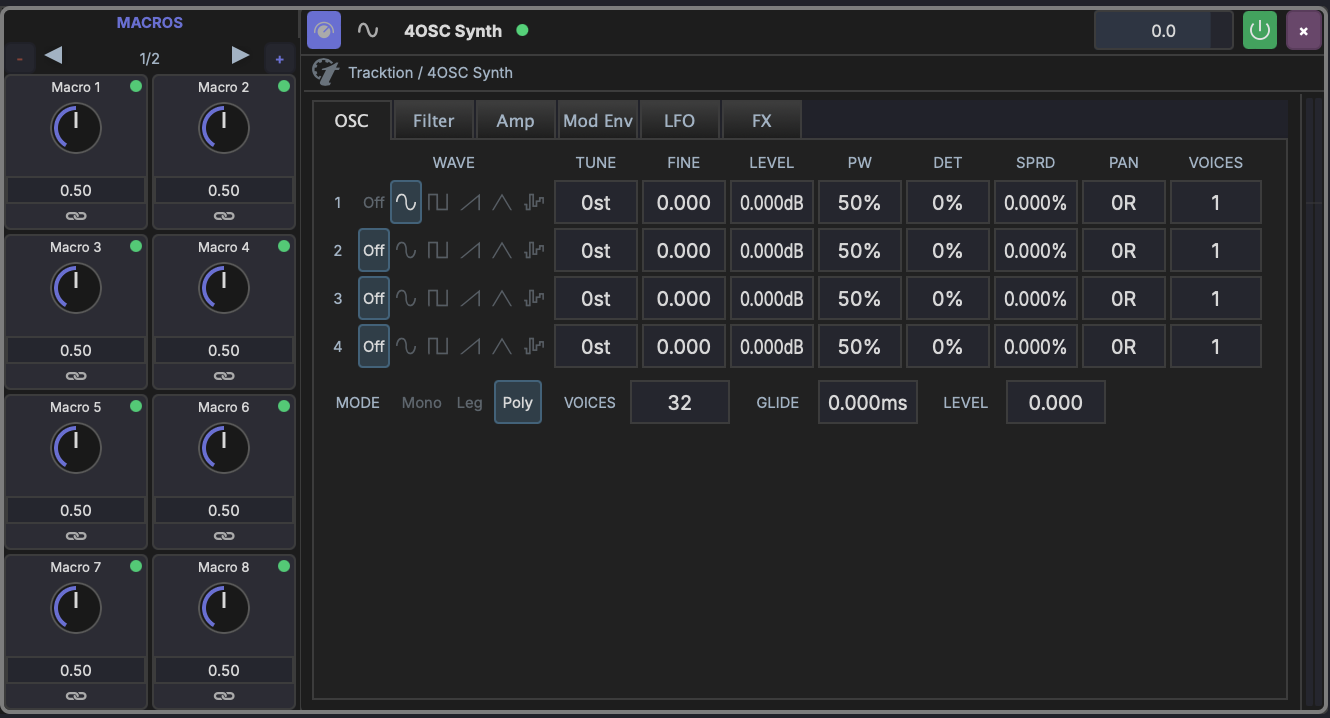
Above: a 4OSC Synth focused with an automap-mapped controller. Each macro knob carries a green dot — the automap profile is driving them, and the device-header dot mirrors the same green.
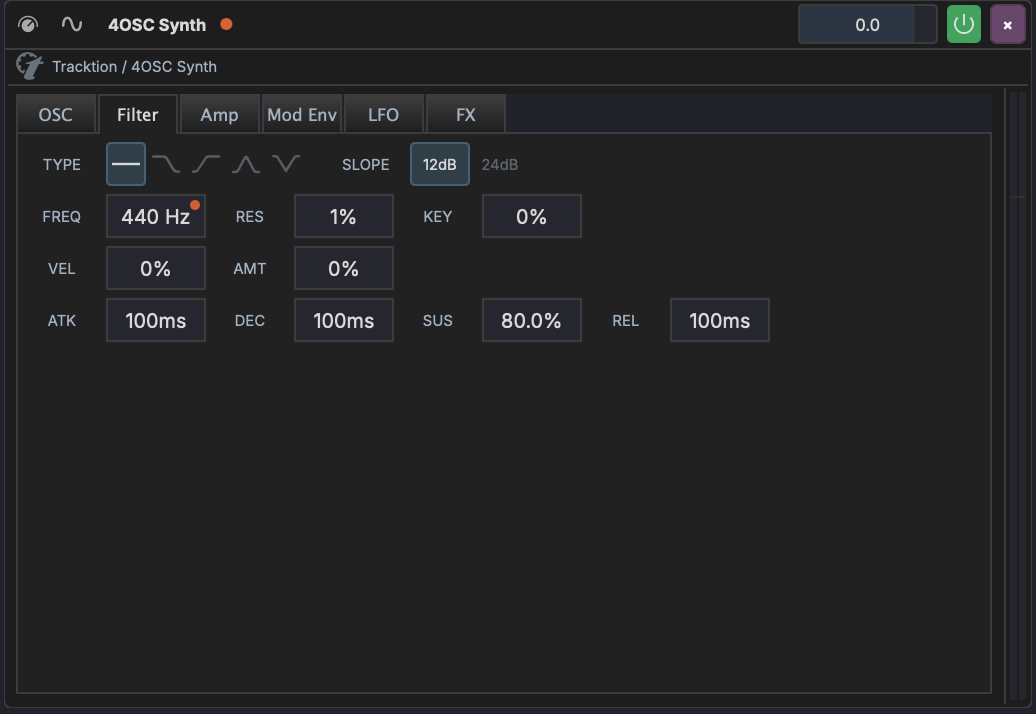
Above: the FREQ slider has an orange dot — a user MIDI Learn binding is in effect. The device-header dot turns orange to mirror it.
Generating a Profile from Description
If MAGDA doesn't ship a profile for your controller, the AI Assistant can write one for you. In the AI panel, type /co to autocomplete /controller, then describe the controller after the command:
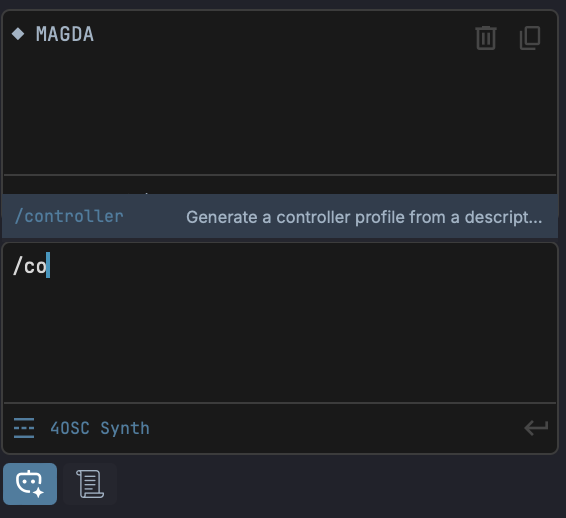
/controller Akai MPK Mini Mk3, 8 knobs on CC 70-77, channel 1
The AI generates a profile JSON, drops it in your controllers directory, and prompts you to enable it. Describe the controller in plain language — manufacturer, model, which CCs the knobs send, MIDI channel — the more specific you are, the better the profile.
To tweak the generated JSON by hand — fix a CC number, switch a knob to drive selected.pan instead of a focused-device macro — the Controller Profile Format reference explains every field.
See AI Assistant — Slash Commands.
Lua Controller Scripts
Some controllers can't be expressed as a static CC → target mapping — Mackie Control surfaces, controllers with motorised faders that need feedback, controllers that change mode based on app state. For those, MAGDA hosts a Lua scripting layer: load a .lua file from the Lua Scripts tab in the Controllers dialog and it receives every incoming MIDI event for the assigned port.
The script is just Lua 5.4 (sandboxed — no io, os, require) with a magda.* API for talking back to the DAW: magda.transport, magda.session, magda.tracks, magda.devices, magda.midi. Define a top-level on_midi(event) and it fires for every event matching the assigned input port (or every input, if the port is left blank).
-- Toggle play/stop on a single CC.
function on_midi(e)
    if e.type == "cc" and e.cc == 117 and e.value > 0 then
        if magda.transport.is_playing() then
            magda.transport.stop()
        else
            magda.transport.play()
        end
    end
end
Two optional callbacks are also dispatched: on_load() once at script start, and on_tick(dt) on a periodic timer (use it to drive feedback, e.g. push the playhead position back to motorised LEDs).
Only one script can be active at a time. Loading a new script replaces the previous one. Reload picks up file edits without restarting MAGDA.
Scripts Tab
The Scripts tab in the Controllers dialog lists the scripts available to you — the factory scripts you have enabled, plus every .lua file in your own scripts folder. Each row shows:
| Column | Description |
|---|---|
| Status dot | Green when this is the active script; outlined when it isn't |
| Name | Script filename (e.g. launchkey_mini_mk4.lua) |
| Active label | An Active tag appears under the name when this is the loaded script |
| MIDI Out port | The MIDI output the script sends feedback to (assignable per script) |
| DAW In port | The MIDI input the script's on_midi listens to (empty = all inputs) |
Header buttons:
- + Add script — pick from the factory scripts bundled with MAGDA (see Factory Scripts) and add it to the list
- Open Scripts Folder — reveals your scripts folder in the OS file browser
- Import script… — pick a
.luafrom disk, copy it into the scripts folder, refresh the list. You are asked before an existing file of the same name is replaced. - Reload — re-evaluate the active script (or load the alphabetically-first script if none is active). Picks up file edits without restarting MAGDA.
Click a row's port columns to assign / change the MIDI ports for that script. Right-click a row for Reveal in Finder, Unload (on the active script), and Disable factory script (on a factory one).
Factory Scripts
MAGDA ships with ready-made scripts for common controllers. They live inside the application rather than in your scripts folder, and are added to the list through + Add script rather than by copying files.
| Script | Controller |
|---|---|
launchkey_mini_mk4.lua |
Novation Launchkey Mini MK4 — transport, pads, knobs, scene switching |
launchpad_mk1.lua |
Novation Launchpad MK1 / Classic — session grid, scene launch, banking, User 1/2 note layouts |
launchpad_mk2.lua |
Novation Launchpad MK2 — session grid, scene launch, banking, User 1/2 note layouts |
8-knobs.lua |
Any 8-knob controller — CC 1–8 drive the volume of tracks 1–8 |
foot-pedal.lua |
Any sustain pedal — CC 64 launches and stops the selected session clip |
Disable factory script removes one from the list; + Add script brings it back. Once every factory script is enabled the button reports that there is nothing left to add.
To modify one, add it, use Reveal in Finder to find it, and copy it into your own scripts folder under a new name.
Scripts Folder
| Platform | Path |
|---|---|
| macOS | ~/Library/MAGDA/Scripts/Controllers/ |
| Windows | %APPDATA%\MAGDA\Scripts\Controllers\ |
| Linux | ~/.config/MAGDA/Scripts/Controllers/ |
The folder is created on first launch. Drop .lua files in there and they show up in the Scripts tab. Per-script port assignments are saved alongside.
Footer Indicator
When a Lua script is loaded, the app footer (the bar with the Live / Arrange / Mix view icons) shows a pill with the script's filename and a connection dot — green when its assigned input is plugged in, dim when it's not. Click the pill to jump back into the Controllers dialog. While the script is loaded, controller-profile pills are hidden — the script owns input.
Full API reference: Lua Scripting.
Tips
Tip
A Learn'd binding routes through the port name, so it survives renaming the controller in the dialog or even removing it from the registry. The binding still fires whenever the named port is connected.