Piano Roll
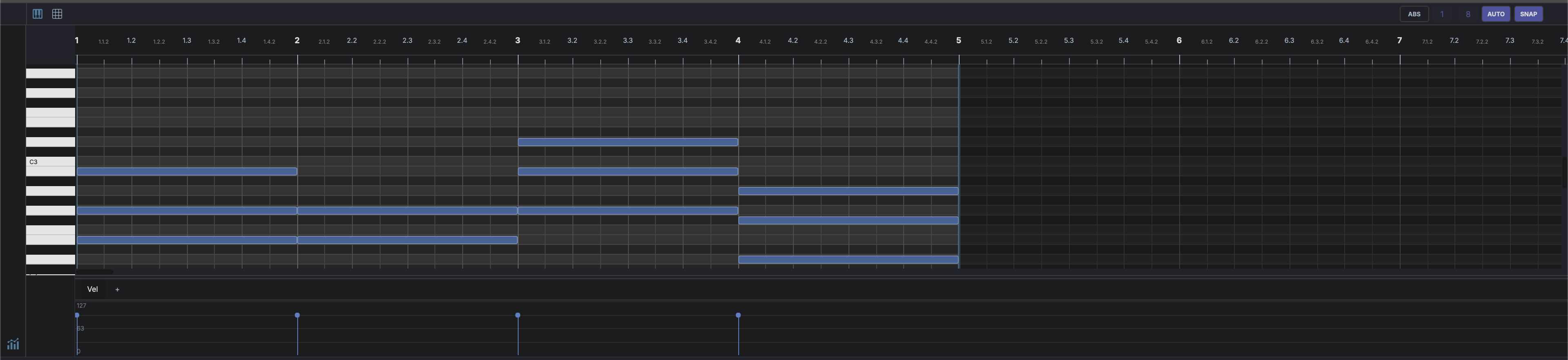
Displayed in the bottom panel when a MIDI clip is selected. Provides a grid for editing notes:
- Horizontal axis — Time (bars and beats)
- Vertical axis — Pitch (MIDI note numbers, with piano keyboard on the left)
- Vertical zoom — Drag the zoom strip on the far-left edge (beside the octave labels and keyboard) up or down to change the note row height. The zoom level is remembered per clip.
- Double-click an empty cell to add a default-length note at that position and pitch
- Shift + drag on empty grid to draw a note of variable length. The drag distance sets the note length. Acts as a pencil tool.
- Drag a note to move it in time or pitch
- Drag edges to resize note length
- Cmd + click a note to delete it directly. If the note is part of a multi-selection, the whole group is erased. Acts as a rubber tool.
- Control lanes at the bottom for velocity, CC and pitchbend (see Control Lanes)
- Live input highlight — with the track's input monitoring on, the keyboard lights up notes as you play them (MIDI or computer keyboard) and scrolls a held note into view
Header controls
- Grid resolution — Draggable numerator/denominator for grid subdivision
- AUTO — Automatically adjust grid resolution based on zoom level
- SNAP — Toggle snap-to-grid
- Slice — Split each selected note into equal pieces (see Slicing Notes)
- Time Bend — Redistribute selected note timing along a curve (see Time Bend)
- Overlay tracks — Show other tracks' notes as a ghost overlay (see Overlay Tracks)
- Loop - Toggle the clip's own source loop on or off
- Fullscreen — Pinned to the far right, this toggle expands the MIDI editor to fill the window. Click again to restore. Available for the Piano Roll and Drum Grid Editor.
Sidebar controls
Stacked on the left sidebar:
- Audition - Toggle note preview (see Auditioning Notes)
- Fold — Collapse the grid to only the pitches in use (see Fold)
- MPE — Toggle pitch glide editing (see Pitch Glides)
- CC — Add a CC or pitchbend lane to the drawer
- Velocity — Toggle the control-lane drawer at the bottom of the editor
Auditioning Notes
A speaker toggle sits in the editor's top-left gutter, above the Fold button. When it is lit, notes sound through the track's instrument as you work on them:
- Click an existing note to play it.
- Shift + drag to draw a note and hear it for as long as you hold.
- Double-click to add a note and it sounds once.
The toggle is off by default, so ordinary selection stays silent. Its state persists as you switch clips and move between the Piano Roll and the Drum Grid Editor within a session.
Control Lanes
The drawer at the bottom of the editor holds the clip's control lanes, stacked vertically so they are all visible at once:
- The velocity lane is always present at the top. Drag the bars to set note velocities; selected notes edit together.
- Add CC and pitchbend lanes with the + button at the bottom of the lane header column (or the CC sidebar button). The menu offers Pitchbend, common controllers (CC 1 (Mod Wheel), CC 7 (Volume), CC 11 (Expression), CC 64 (Sustain)) and Custom CC... for any controller number.
- Each added lane shows its name in the header column with a close button; the pitchbend lane also has a Range field for the bend range in semitones.
- Drag the drawer's top edge to resize it. The drawer grows automatically as lanes are added.
Editing Velocity with the Wheel
Hold Shift and scroll the wheel over a note to nudge its velocity, in steps and clamped to 1-127. If the note is part of the current selection the whole selection scales together; otherwise only that note changes. Shift + wheel over the empty grid edits the current selection. A small v NN readout appears by the cursor while you drag, and a full wheel spin collapses into a single undo step.
While a note is hovered or a selection exists, this gesture takes over from the usual Shift + wheel horizontal scroll.
Fold
The Fold sidebar button collapses the vertical axis to only the pitches that are actually used in the clip, hiding the empty rows in between. Every remaining row is labelled, and the view re-centres on the used notes when you toggle it. Folding is handy on sparse parts — a bassline or a lead — so you can see all the notes without scrolling. With Fold on, dragging a note vertically snaps through the used-pitch rows. The same control exists in the Drum Grid Editor as Fold to used pads.
Take Lanes
When a MIDI clip holds more than one recorded take, click Show take lanes in the editor header to reveal the folded take strip below the grid and comp the takes together. See Recording Takes & Comping.
Pitch Glides (MPE)
Toggle the MPE sidebar button to enter pitch glide editing. In this mode you draw per-note pitch expression directly on a note: the glide curve bends the note's pitch over its length, independently of other notes. Playback uses MPE, so each gliding note gets its own MIDI channel — point the track at an MPE-capable instrument to hear it.
Overlay Tracks (Ghost Notes)
Click the Overlay tracks button in the header (next to the Piano Roll / Drum Grid tabs) to overlay MIDI from other tracks as ghost notes. The menu lists every other track that has MIDI clips; tick as many as you like — the menu stays open while you toggle, and Clear All removes them all at once.
Ghost notes render dimmed in the source clip's colour, aligned on the shared timeline, and are never interactive: they are reference material for harmony and counterpoint while you edit the active clip. The overlay selection persists while you switch clips or move between the Piano Roll and Drum Grid Editor.
Slicing Notes
Select one or more notes and click the Slice button in the editor header bar. A popup shows how many notes are selected and a SLICES control. Set how many equal pieces to divide each selected note into (2 to 32, default 4), then click Apply or press Enter.
Each selected note is split into that many equal-length pieces end to end, keeping the original pitch and velocity. The slices land on the same track in place of the original notes, and they become the new selection so you can immediately edit or slice them again. The action is undoable (Ctrl+Z to revert). Click Cancel or press Esc to dismiss without changing the clip.
Slicing is available in both the Piano Roll and the Drum Grid Editor. The button stays greyed out until at least one note is selected.
Chord Timeline
When a Chord Engine is present on the track, a chord row appears above the note grid showing chord annotations. Chords can be placed by dragging from the Chord Engine's suggestion grid, or auto-detected from existing notes using the refresh button. Annotations are linked to their MIDI notes and update automatically when notes are moved, resized, or deleted. See Chord Engine — Chord Timeline for details.